Working with Gitpod

Working with Gitpod

It’s amazing how easy it is to get up and running with Gitpod. 🤩

If you’re not familiar with Gitpod. It’s a development environment that runs within the cloud. — That’s right, you’ll have VS Code in the browser!

Navigate to the challenge / solution on GitHub. Click on the Fork button at the top. This will put a copy of the repo on your own GitHub account.

Forking a repo within GitHub

Then, at the top of the README, you’ll find an “Open in Gitpod” button. Click on that!
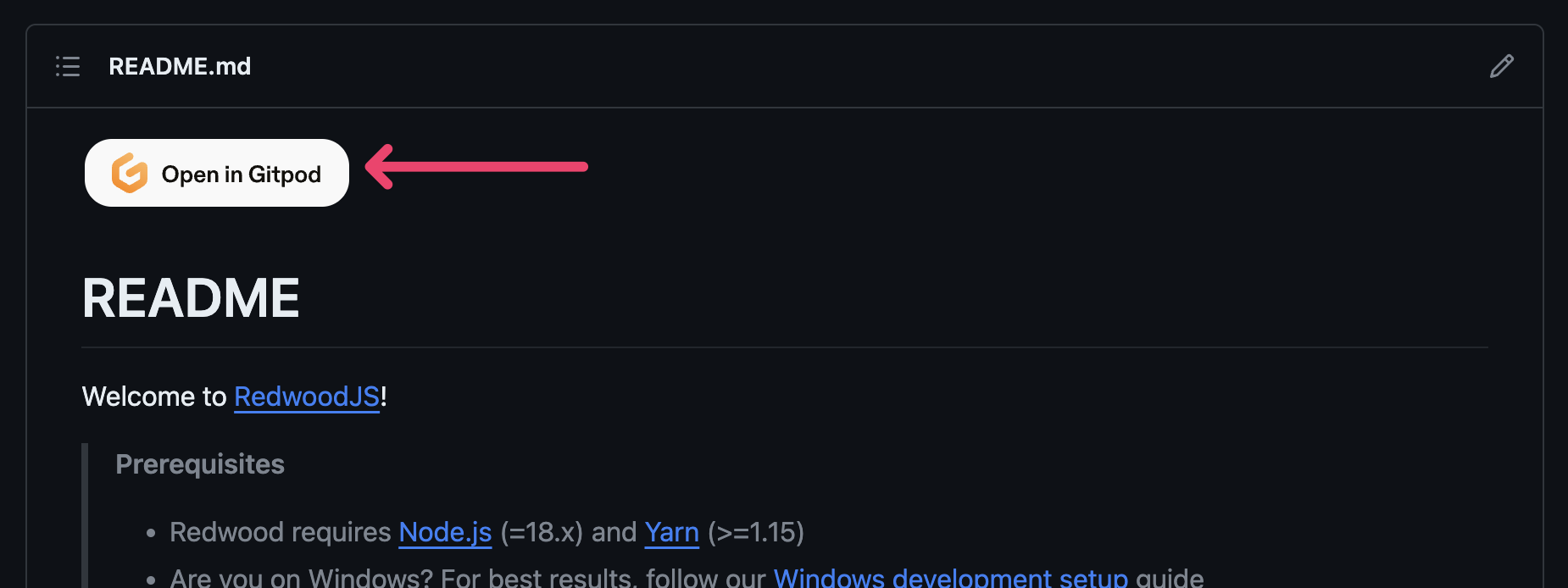
Launch in Gitpod button

This should take you to a New Workspace button on Gitpod. The default settings are fine. Click on Continue.
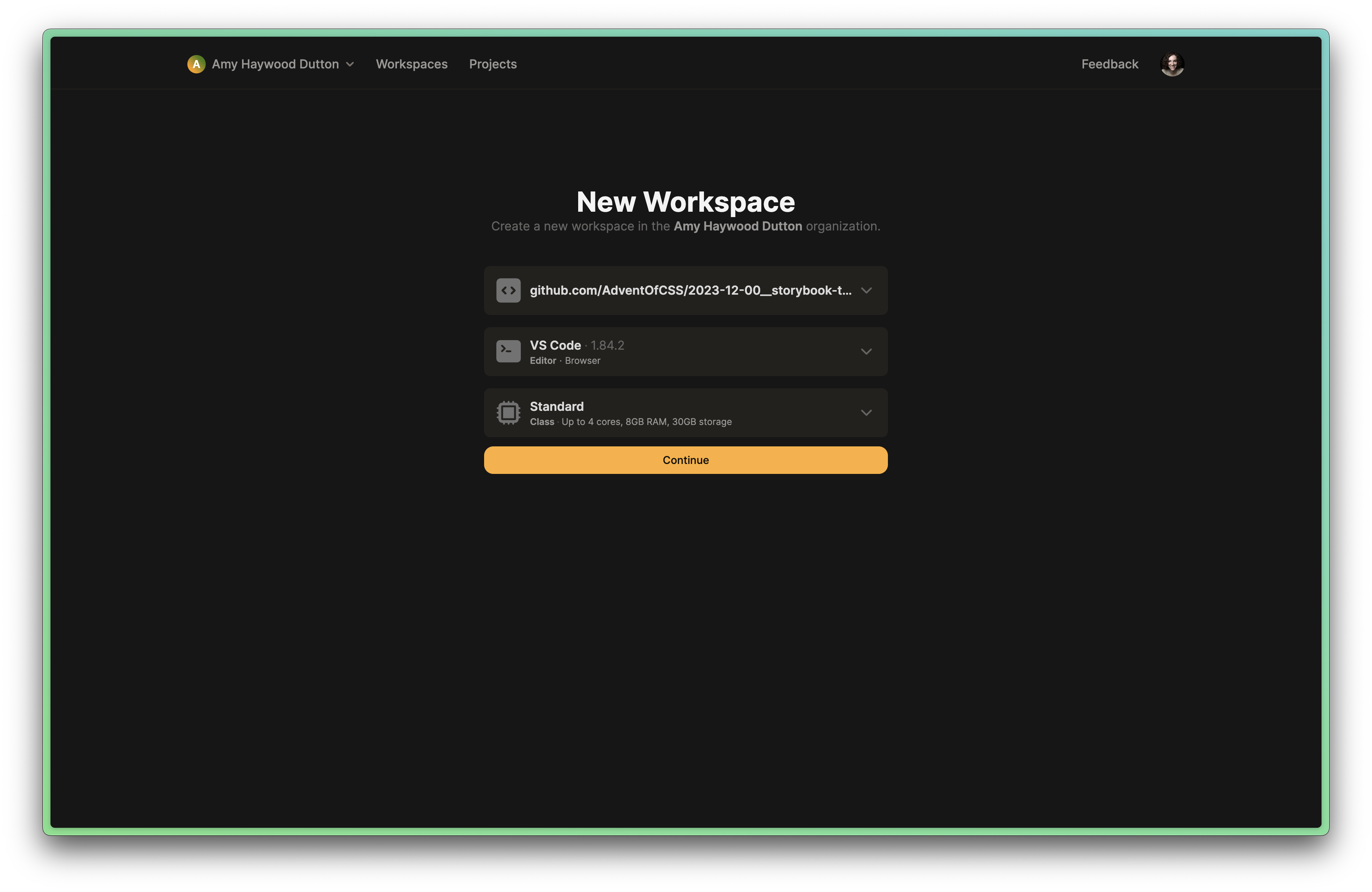
Gitpod Workspace Setup

It may take a minute for everything to load. But, it should run yarn install and download all of the project dependencies and a few recommended VS Code extensions. Everything works just like VS Code does on your computer. In fact, you can even commit code back to your repository, directly from Gitpod.
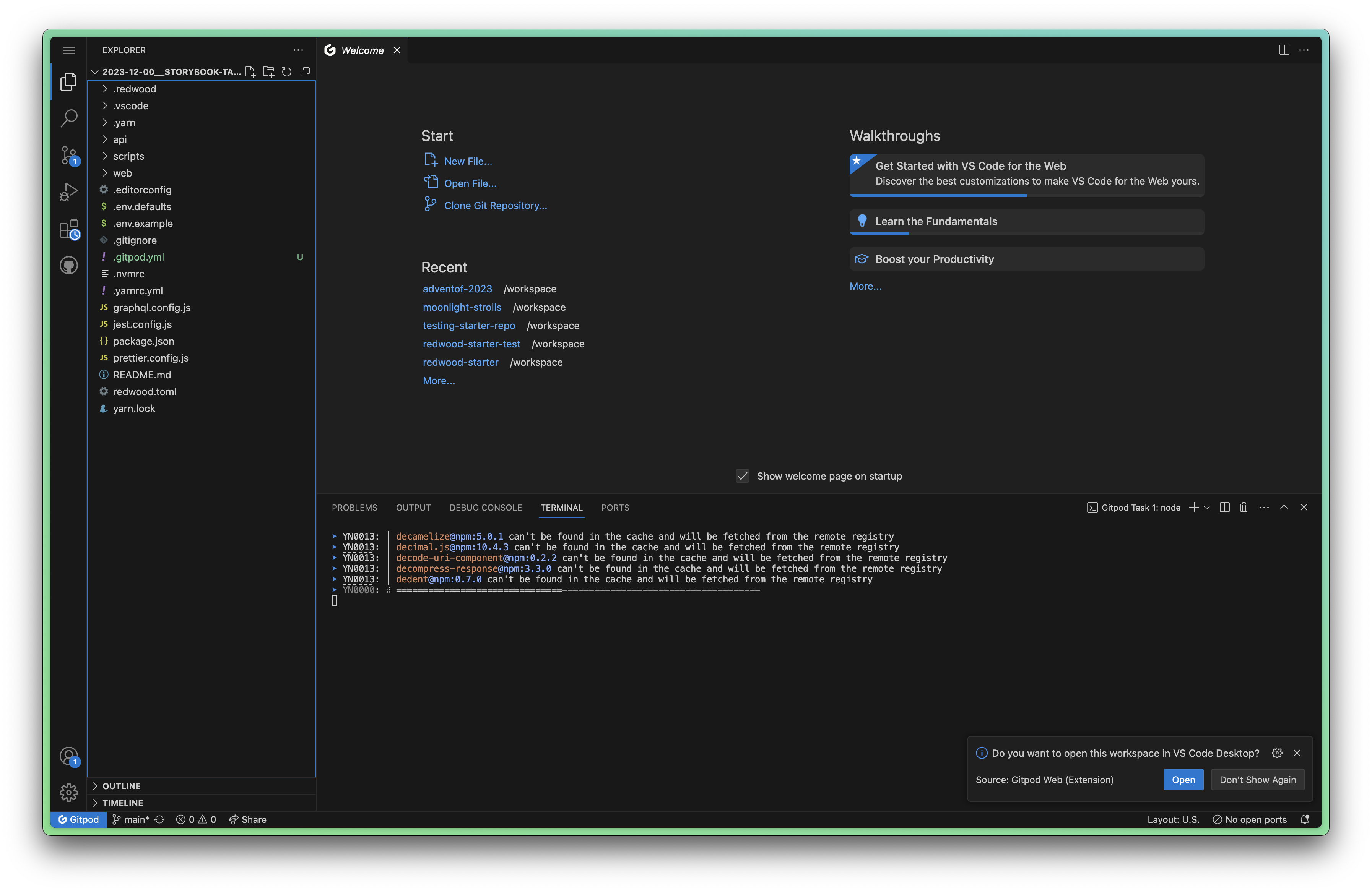
VS Code inside Gitpod

From here, you can run yarn rw storybook within the Terminal and a new tab, with Storybook should open.

Amazing, right?!

Advent of JavaScript 2023

Buy nowLearn more

👋 Welcome!

  • START HERE!26

Challenge #1 - Setting up the Database

  • Challenge #12
  • Project Files
  • Solution #1

Challenge #2 - Set up an Authentication System

  • Challenge #2
  • Project Files
  • Solution #2

Challenge #3 - Styling the Login Pages

  • Challenge #3
  • Project Files
  • Solution #42

Challenge #4 - Creating a Group / Event Form

  • Challenge #4
  • Project Files
  • Solution #4

Challenge #5 - Invite Page

  • Challenge #5
  • Project Files2
  • Solution #5

Challenge #6 - Edit the Event

  • Challenge #6
  • Project Files
  • Solution #6

Challenge #7: Send an Email Invite to a Friend

  • Challenge #7
  • Project Files1

Challenge #8 - RSVP Page

  • Challenge #8
  • Project Files

Challenge #9 - View the Wish List

  • Challenge #9
  • Project Files

Challenge #10 - Create Wish List

  • Challenge #10
  • Project Files

Challenge #11 - Update the Wish List

  • Challenge #11
  • Project Files

Challenge #12 - Dashboard Page

  • Challenge #12
  • Project Files

Challenge #13 - Match Names Together

  • Project Files
  • Challenge #13

Challenge #14 - Automatically Trigger Matching

  • Challenge #14
  • Project Files

Challenge #15 - Thank You Page

  • Challenge #151
  • Project Files

Challenge #16 - Create your wishlist

  • Challenge #16
  • Project Files

Challenge #17 - Archive of Previous Events

  • Challenge #17
  • Project Files

Challenge #18 - Role Based Access

  • Challenge #18
  • Project Files

Challenge #19 - Seed the Database

  • Challenge #19
  • Project Files

Challenge #20 - Custom Upload Field

  • Challenge #20
  • Project Files

Challenge #21 - Delete an Invite

  • Challenge #21
  • Project Files

Challenge #22 - Send Event Reminders

  • Challenge #22
  • Project Files

Challenge #23 - Outstanding Pieces

  • Challenge #23
  • Project Files

Challenge #24 - Deploying

  • Challenge #24
  • Project Files2

Appendix

  • Getting Help and Support
  • Working with RedwoodJS
  • Working with Storybook
  • Working with Gitpod
  • Working with Github
  • Want more? Where to go from here?