Working with Github

Working with Github

GitHub is a perfect place for storing your code, whether you’re working by yourself, with a team, or sharing code (like I am) with others.

The simplest way to get code out of GitHub and onto your machine is to download a zip.
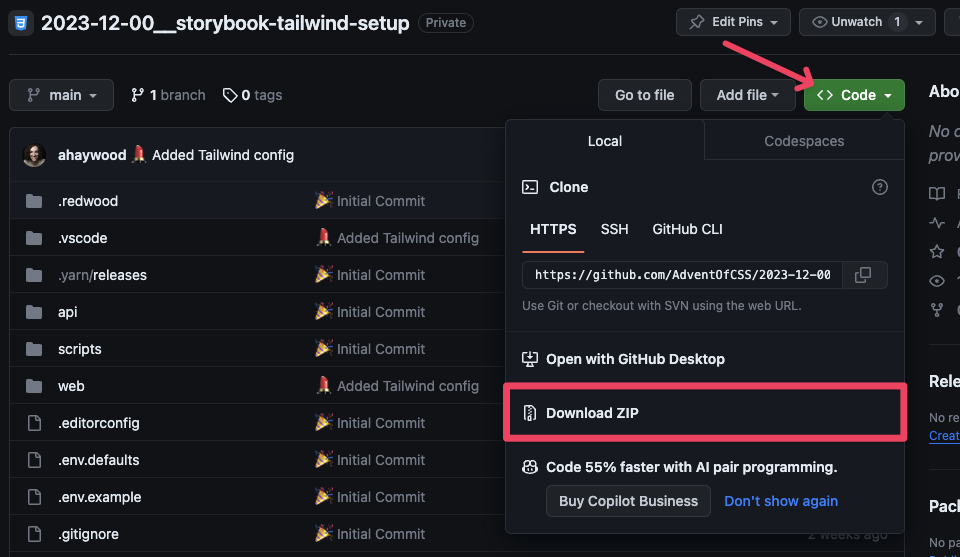
Download Zip within Github

If you’re more comfortable with the Terminal and already have git installed on your computer, then you can copy the URL
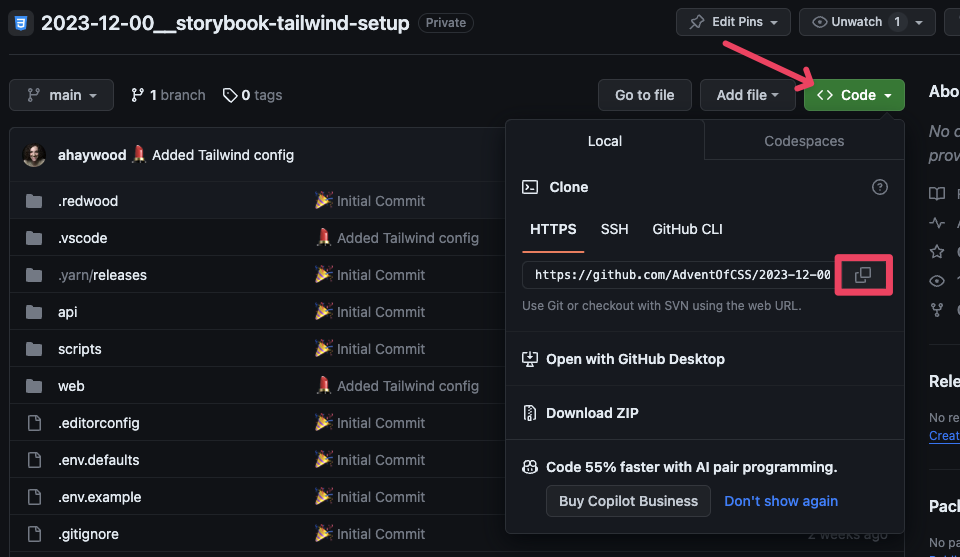
Clone GitHub repo

and run git clone <URL>. Then, inside the downloaded project folder, you’ll need to run yarn install . This might take a minute, as it’s downloading all the project dependencies. Now, you can run yarn rw storybook and you’re off to the races! 🏃‍♀️

If you’re new to GitHub…

Our use of GitHub will be fairly limited. It’s just a way to deliver code to you! But, if you want to dig in and learn more, I have an series on YouTube on working with Git. I recorded it several years ago, but its evergreen. All the content is still useful and relevant.

  • Part 1: What is git? Why use it? How to install it - https://youtu.be/A6bo-NjKtTc

  • Part 2: How to use git in the Terminal and in a Graphical User Interface, like Tower - https://youtu.be/cX-2k3dt11c

  • Part 3: Fixing Bad Commits - https://youtu.be/d--34g7u3cM

  • Part 4: Branching - https://youtu.be/8Gno6JUOYHk

  • Part 5: How to Resolve Merge Conflicts - https://youtu.be/Lz5fWjnemSA

  • Part 6: Writing and Approving Pull Requests in GitHub - https://youtu.be/1XrP6POUPD0

  • Part 7: Best Practices for Teams - https://youtu.be/Hd_BMpn4sBA

  • Part 8: What is Tracking? - https://youtu.be/CKKzLJv5J2Y

  • Part 9: gitignore Tutorial - https://youtu.be/lAIZsCHQBpE

  • Part 10: My Favorite git Trick: gitmoji - https://youtu.be/-0o53Ys1HIs

  • Part 11: Oh my Zsh! Tutorial - git Customizations and Shortcuts - https://youtu.be/DcoNNVM_GlQ

  • Part 12: git for Beginners: Using SSH Keys with GitHub - https://youtu.be/2dA1dfkS79o

Advent of JavaScript 2023

Buy nowLearn more

👋 Welcome!

  • START HERE!26

Challenge #1 - Setting up the Database

  • Challenge #12
  • Project Files
  • Solution #1

Challenge #2 - Set up an Authentication System

  • Challenge #2
  • Project Files
  • Solution #2

Challenge #3 - Styling the Login Pages

  • Challenge #3
  • Project Files
  • Solution #42

Challenge #4 - Creating a Group / Event Form

  • Challenge #4
  • Project Files
  • Solution #4

Challenge #5 - Invite Page

  • Challenge #5
  • Project Files2
  • Solution #5

Challenge #6 - Edit the Event

  • Challenge #6
  • Project Files
  • Solution #6

Challenge #7: Send an Email Invite to a Friend

  • Challenge #7
  • Project Files1

Challenge #8 - RSVP Page

  • Challenge #8
  • Project Files

Challenge #9 - View the Wish List

  • Challenge #9
  • Project Files

Challenge #10 - Create Wish List

  • Challenge #10
  • Project Files

Challenge #11 - Update the Wish List

  • Challenge #11
  • Project Files

Challenge #12 - Dashboard Page

  • Challenge #12
  • Project Files

Challenge #13 - Match Names Together

  • Project Files
  • Challenge #13

Challenge #14 - Automatically Trigger Matching

  • Challenge #14
  • Project Files

Challenge #15 - Thank You Page

  • Challenge #151
  • Project Files

Challenge #16 - Create your wishlist

  • Challenge #16
  • Project Files

Challenge #17 - Archive of Previous Events

  • Challenge #17
  • Project Files

Challenge #18 - Role Based Access

  • Challenge #18
  • Project Files

Challenge #19 - Seed the Database

  • Challenge #19
  • Project Files

Challenge #20 - Custom Upload Field

  • Challenge #20
  • Project Files

Challenge #21 - Delete an Invite

  • Challenge #21
  • Project Files

Challenge #22 - Send Event Reminders

  • Challenge #22
  • Project Files

Challenge #23 - Outstanding Pieces

  • Challenge #23
  • Project Files

Challenge #24 - Deploying

  • Challenge #24
  • Project Files2

Appendix

  • Getting Help and Support
  • Working with RedwoodJS
  • Working with Storybook
  • Working with Gitpod
  • Working with Github
  • Want more? Where to go from here?