Working with Gitpod

Working with Gitpod

It’s amazing how easy it is to get up and running with Gitpod. 🤩

If you’re not familiar with Gitpod. It’s a development environment that runs within the cloud. — That’s right, you’ll have VS Code in the browser!

Navigate to the challenge / solution on GitHub. Click on the Fork button at the top. This will put a copy of the repo on your own GitHub account.

Fork GitHub repo

Then, at the top of the README, you’ll find an “Open in Gitpod” button. Click on that!
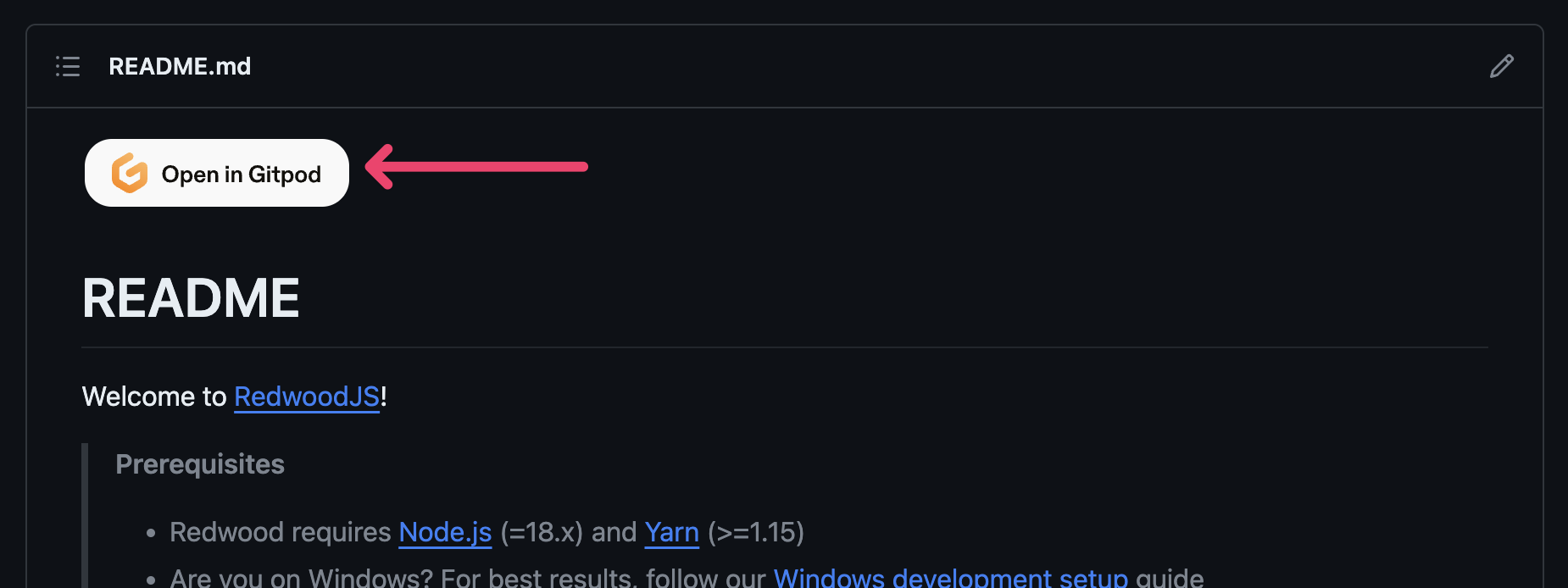
Open in Gitpod button

This should take you to a New Workspace button on Gitpod. The default settings are fine. Click on Continue.
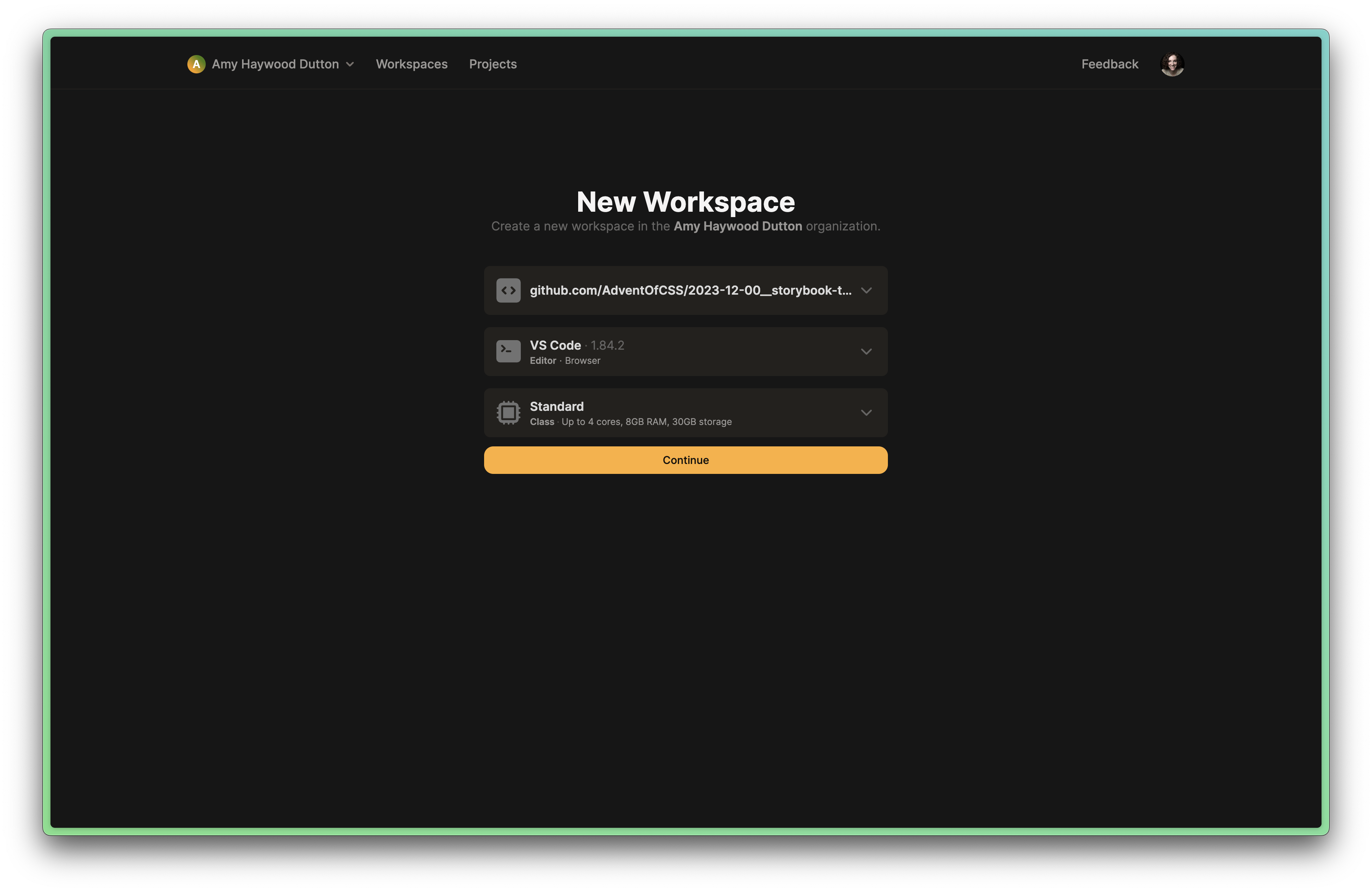
New workspace in Gitpod

It may take a minute for everything to load. But, it should run yarn install and download all of the project dependencies and a few recommended VS Code extensions. Everything works just like VS Code does on your computer. In fact, you can even commit code back to your repository, directly from Gitpod.
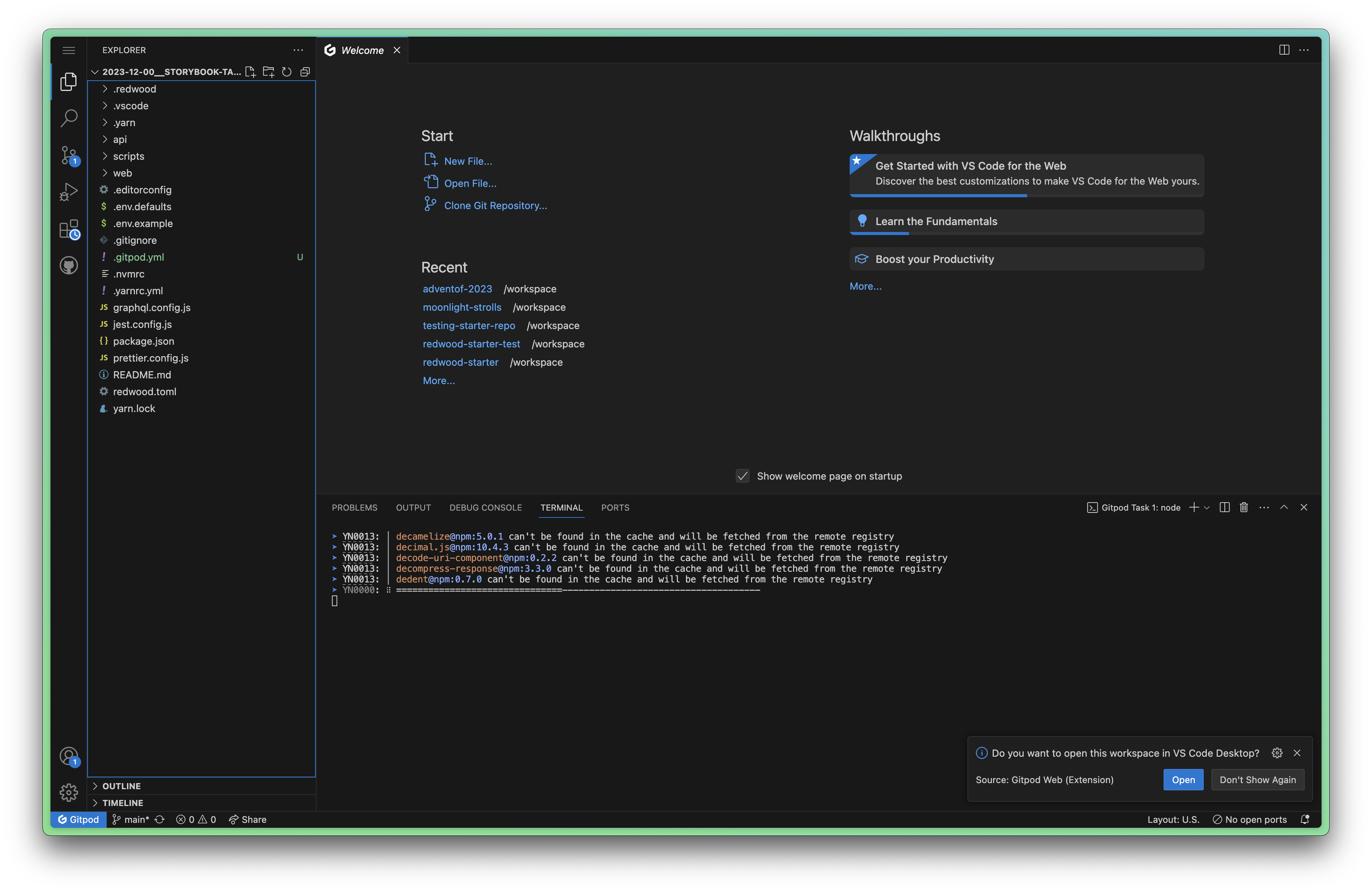
VS Code in Gitpod

From here, you can run yarn rw storybook within the Terminal and a new tab, with Storybook should open.

Amazing, right?!

Advent of CSS 2023

Buy nowLearn more

👋 Welcome

  • START HERE!2
  • Setting up your Project2

Challenge #1 - Building An Icon Component

  • Challenge #18
  • Project Files
  • Solution #16

Challenge #2 - Building an Avatar Component

  • Challenge #2
  • Project Files
  • Solution #25

Challenge #3 - Form Fields and CSS Only Validation

  • Challenge #34
  • Project Files
  • Solution #35

Challenge #4 - Show / Hide Password

  • Challenge #4
  • Project Files
  • Solution #4

Challenge #5 - Login Layout

  • Challenge #5
  • Project Files1
  • Solution #5

Challenge #6 - Slide up Footer

  • Challenge #6
  • Project Files
  • Solution #6

Challenge #7 - Hamburger Menu

  • Challenge #7
  • Project Files
  • Solution #7

Challenge #8 - Slide Out Navigation

  • Challenge #8
  • Project Files
  • Solution #8

Challenge #9 - Dropdown Menu

  • Challenge #9
  • Project Files
  • Solution #9

Challenge #10 - Interior Page Layout

  • Challenge #10
  • Project Files
  • Solution #10

Challenge #11 - Custom Checkbox

  • Challenge #11
  • Project Files
  • Solution #111

Challenge #12 - RSVP Pages

  • Challenge #12
  • Project Files
  • Solution #12

Challenge #13: Invite Card

  • Challenge #13
  • Project Files
  • Solution #13

Challenge #14 - Invite Group Form

  • Challenge #14
  • Project Files
  • Solution #14

Challenge #15 - Modal

  • Challenge #15
  • Project Files
  • Solution #15

Challenge #16 - Create your wishlist

  • Challenge #16
  • Project Files
  • Solution #16

Challenge #17 - Slide Out Panel

  • Challenge #17
  • Project Files
  • Solution #17

Challenge #18 - View Your Wish List Layout

  • Challenge #18
  • Project Files3

Challenge #19 - Expanding and Collapsing Accordion

  • Challenge #19
  • Project Files

Challenge #20 - Dashboard Page

  • Challenge #20
  • Project Files1

Challenge #21 - Pairing

  • Challenge #21
  • Project Files

Challenge #22 - Thank You Note

  • Challenge #22
  • Project Files

Challenge #23 - Spinner for the Loading State

  • Challenge #23
  • Project Files

Challenge #24 - Light and Dark Theme Switcher

  • Challenge #24
  • Project Files

Appendix

  • Getting Help and Support
  • Working with GitHub
  • Working with Gitpod2
  • Working with Storybook
  • Working with Redwood
  • Testimonials
  • Want more? Where to go from here?